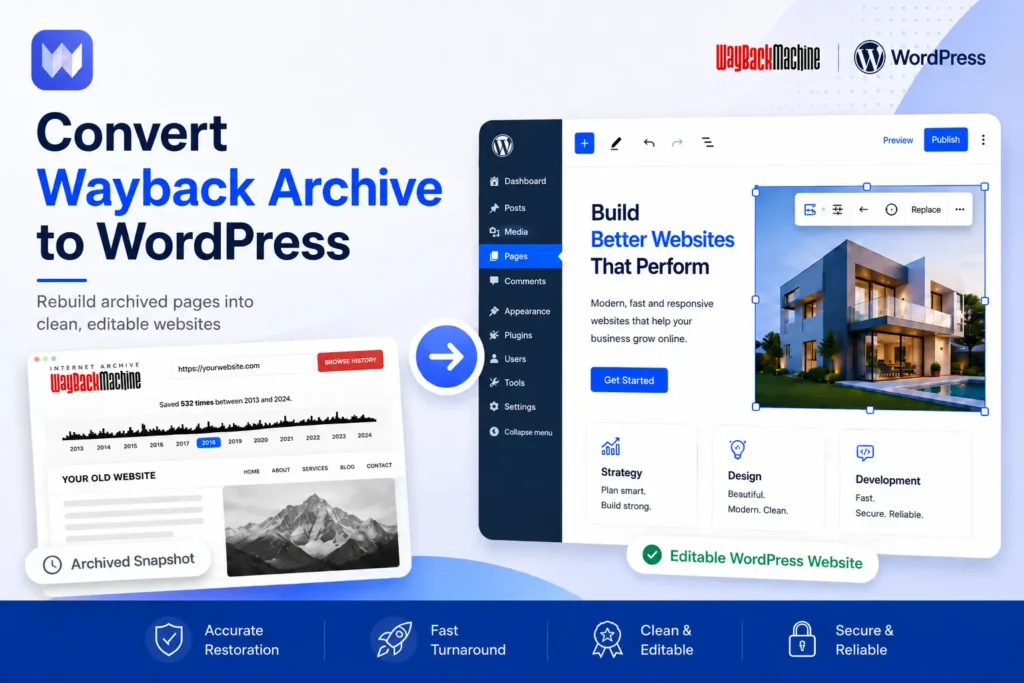
If your old website is visible on the Wayback Machine, that does not always mean it can be restored with one click. A Wayback archive usually saves static snapshots of public website pages. WordPress, on the other hand, is an editable content management system where pages, images, menus, and settings can be managed from the admin dashboard.
To convert Wayback archive to WordPress, the archived content needs to be reviewed, cleaned, rebuilt, and placed into WordPress as editable pages. This can include text, images, page layouts, menus, and important SEO structure.
This process is useful when the original website backup is missing, the old hosting account is gone, or the website needs to be rebuilt in a modern editable format.
For a broader recovery overview, read our guide to restoring a website from the Wayback Machine.
What It Means to Convert a Wayback Archive to WordPress
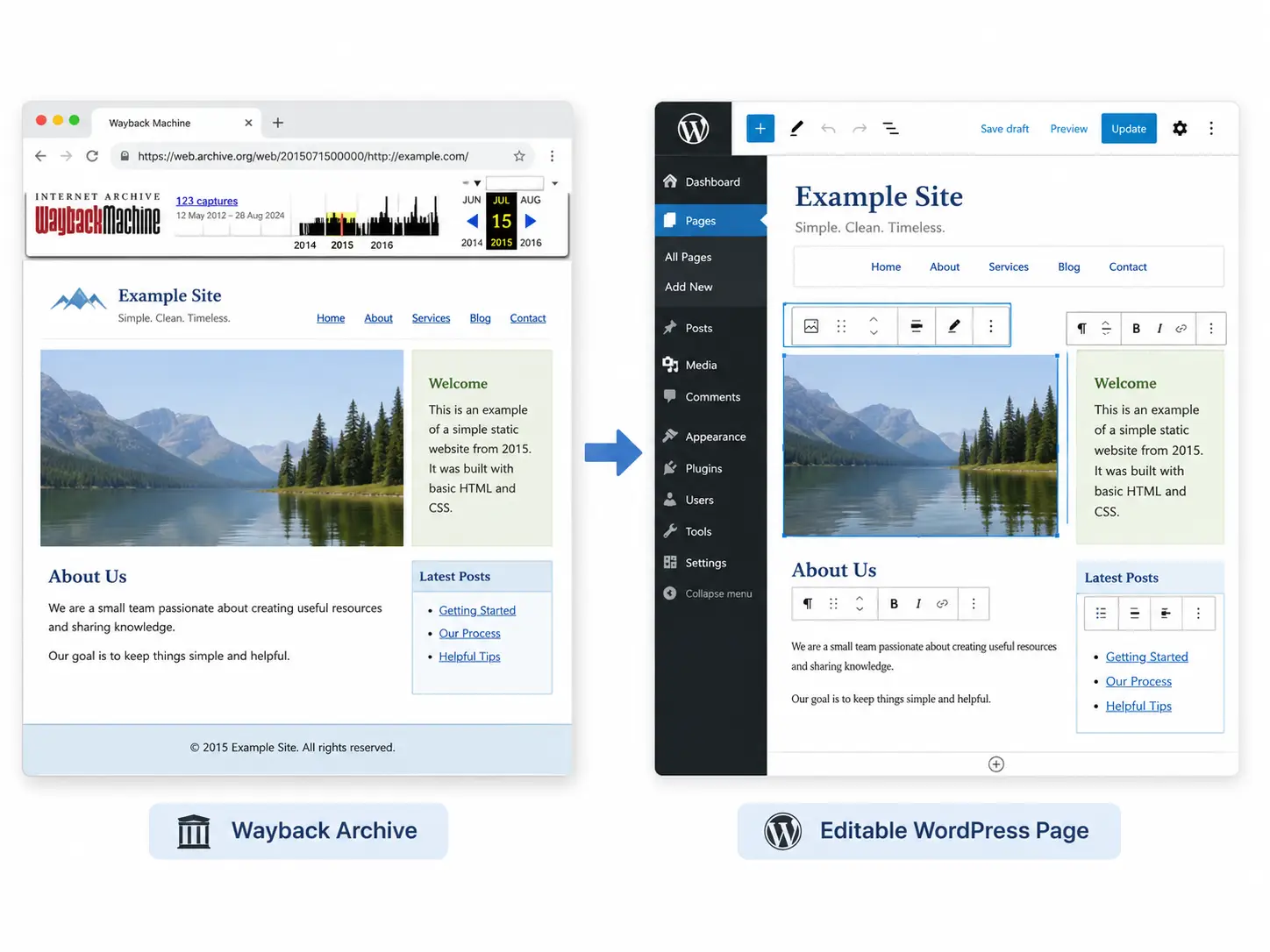
Converting a Wayback archive to WordPress means taking the visible content and design from archived pages and rebuilding them inside WordPress as editable pages.
A Wayback Machine snapshot is usually a saved version of what visitors could see on a website at a specific time. It may include text, images, basic styling, and some public files. But it is not the same as a full WordPress backup.
A WordPress website needs pages, themes, media files, menus, plugins, settings, and sometimes custom layouts. These items are managed through the WordPress admin area.
So, this process is not normally a direct import. It usually involves reviewing the archived pages, extracting useful content, cleaning old code, rebuilding layouts, uploading images, and recreating the site structure inside WordPress.
The goal is not just to copy an old page. The goal is to make the recovered website editable, responsive, clean, and usable again.
What Content Can Be Moved Into WordPress
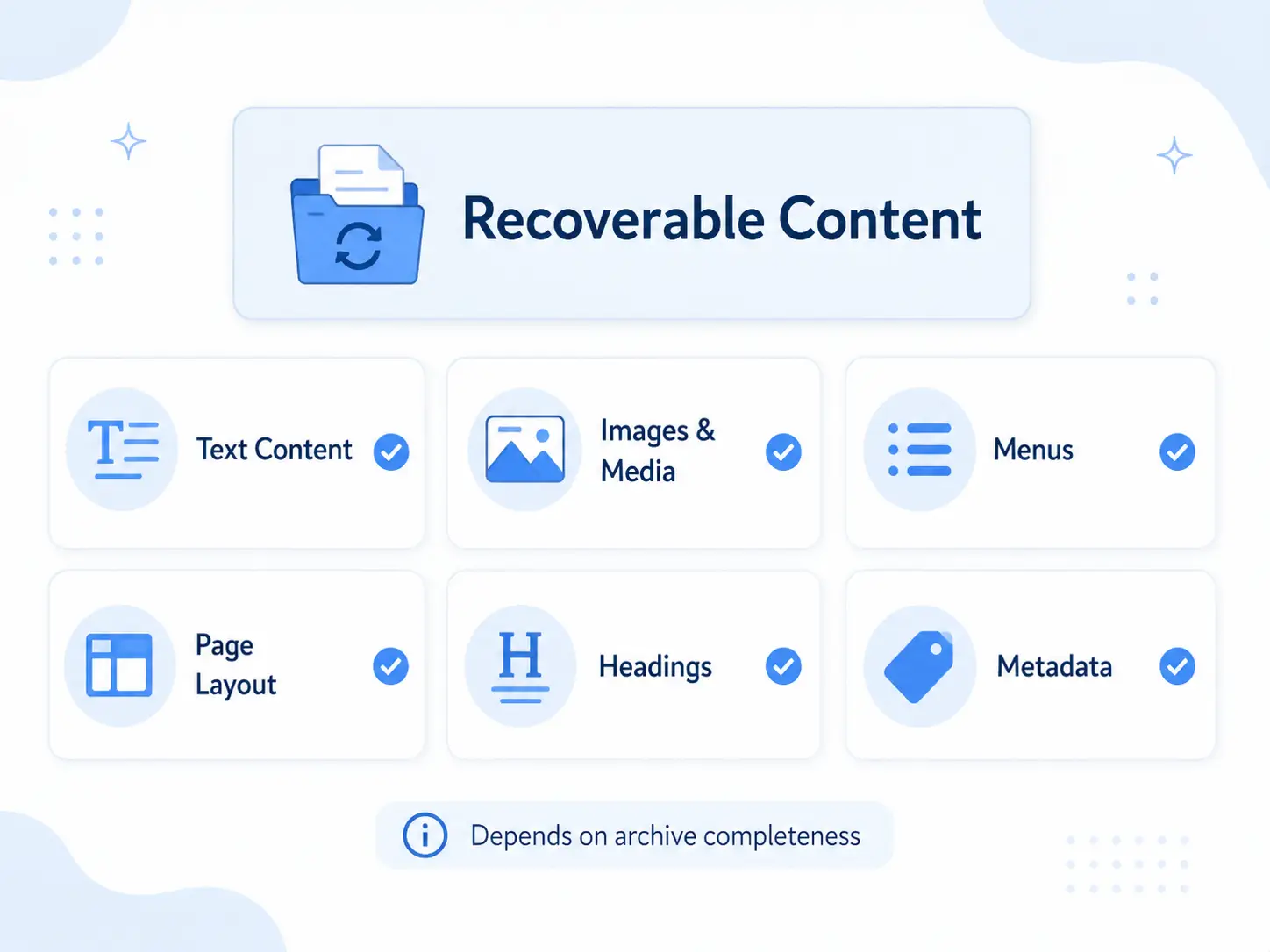
A good Wayback archive can provide a lot of useful material for rebuilding a WordPress website. The most common recoverable items are page text, headings, images, public documents, page structure, and basic layout references.
For example, if the old homepage is archived clearly, the main headline, service sections, images, testimonials, buttons, and footer text can usually be recreated in WordPress. The same applies to public pages such as About, Services, Contact, Blog, Portfolio, or location pages.
Menus and navigation can also be rebuilt by checking how pages were linked in the archived version. If the old URLs are visible, they can often be reused as WordPress slugs. This is useful for SEO because keeping important URLs consistent can reduce disruption after relaunch.
Basic metadata may also be recovered if it is visible in the archived page source. This can include title tags, meta descriptions, image alt text, and heading structure.
The quality of the rebuild depends on how complete the archived snapshot is. Some archives save most visible assets. Others may miss images, CSS files, or full page sections. In those cases, the missing parts need to be recreated manually.
File recovery should be assessed snapshot by snapshot because images, documents, stylesheets, and scripts may have different archive coverage.
What Usually Cannot Be Imported Directly
It is important to understand the limits of a Wayback archive. The Wayback Machine usually saves public-facing pages. It does not save the private WordPress admin area, database, plugin settings, customer records, or backend systems.
This means you usually cannot directly recover contact form submissions, WordPress users, WooCommerce orders, checkout history, customer accounts, admin dashboard data, plugin configurations, or private files.
Dynamic features also need special attention. For example, an old contact form may appear visually in the archived page, but the form will not actually work after being copied. It needs to be rebuilt using a WordPress form plugin. The same applies to search filters, booking forms, login areas, carts, custom dashboards, and other interactive features.
Comments may only be recoverable if they were publicly visible on the archived page. If they existed only inside the database and were not shown in the saved page, they usually cannot be restored from the archive alone.
This is why a Wayback archive should be treated as a public reference source, not as a complete technical backup. For business websites, our website restoration services help identify what can be recovered and what needs to be rebuilt.
Preparing Archived Files Before the WordPress Rebuild
Before rebuilding the archived website in WordPress, the available snapshots should be reviewed carefully. In most restorations, the best snapshot is not always the newest one. Sometimes an older snapshot has more complete images, better styling, or fewer broken sections.
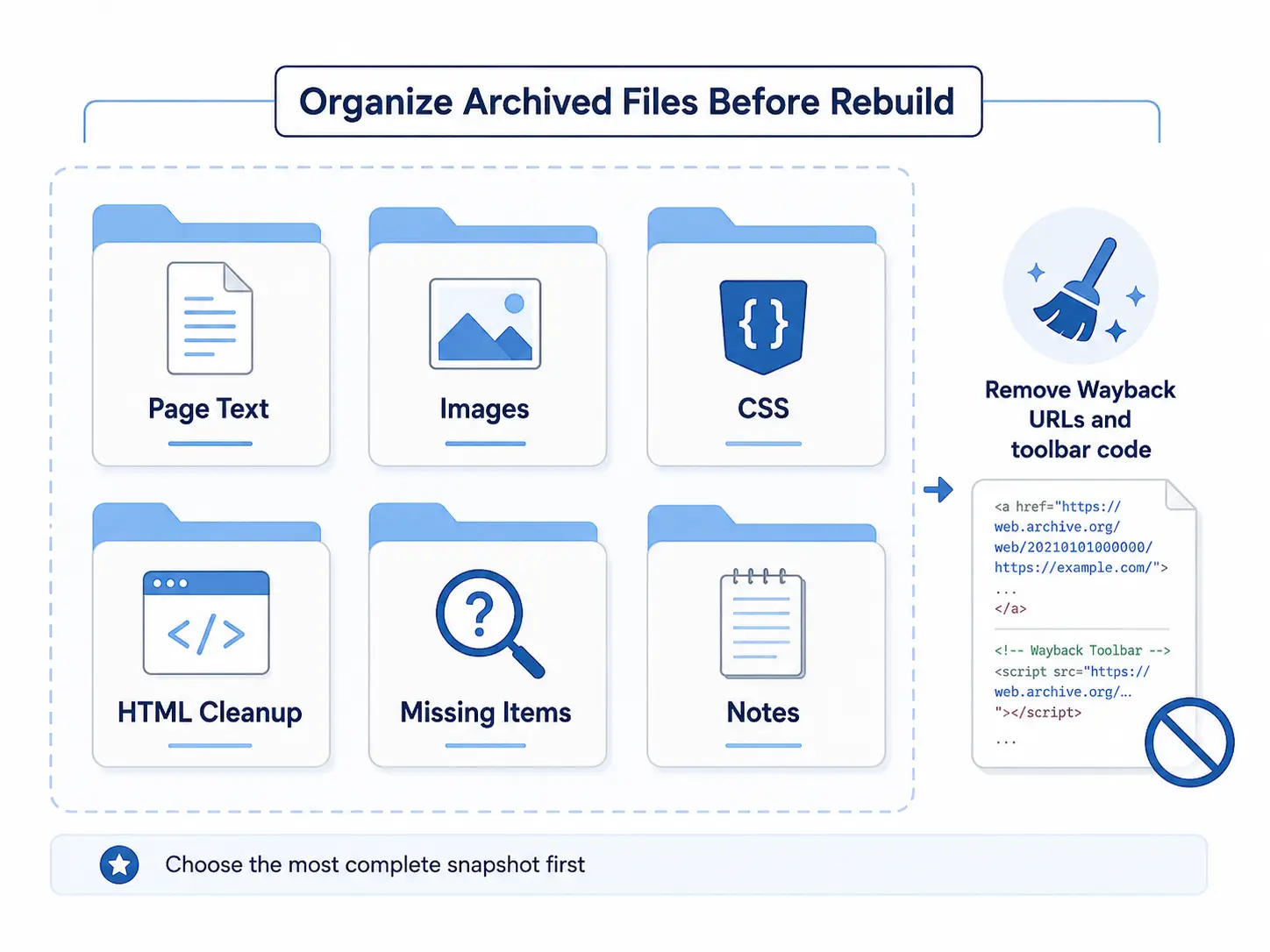
The first step is to identify the most complete version of each important page. Then the visible content, headings, images, and layout references can be saved and organized.
A clean preparation process usually includes:
- Saving important page text
- Collecting available images and public files
- Checking CSS and design references
- Removing Wayback-specific URLs
- Removing archive toolbar code if present
- Noting missing images or sections
- Organizing files by page or section
The archived HTML should also be cleaned before using it as a reference. Directly copying old Wayback code into WordPress can create messy pages, broken scripts, and poor editing experience.
If archive toolbar code appears in downloaded HTML, it should be removed during cleanup rather than carried into the WordPress rebuild.
Downloading archived files is a separate extraction task. The WordPress conversion stage should begin only after the useful files and snapshots have been identified and organized.
Rebuilding Pages in WordPress
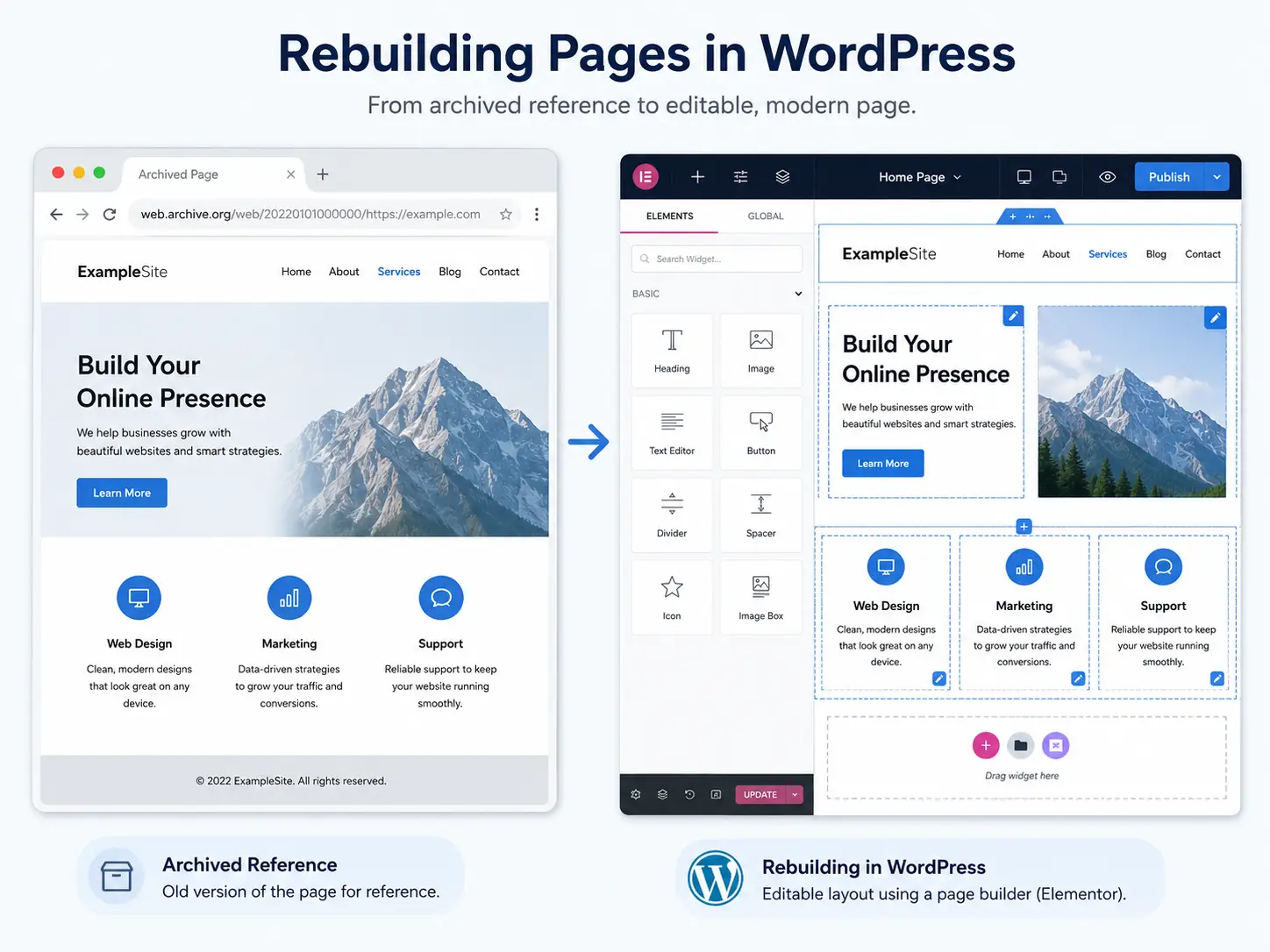
Rebuilding pages is the most important part of converting a Wayback archive to WordPress. This is where the archived design and content are turned into editable WordPress pages.
The rebuild method depends on the website requirements. A simple site may be rebuilt using the WordPress block editor. A more design-focused site may be recreated with Elementor. Some websites may need a custom WordPress theme if the layout is more advanced.
In most cases, manual rebuilding gives better results than pasting raw archived HTML into WordPress. Raw HTML from old archives can contain broken links, outdated scripts, unnecessary code, Wayback URLs, and styling that does not work well on modern devices.
A clean WordPress rebuild usually includes creating each page manually, adding recovered text, uploading images to the media library, recreating sections, rebuilding buttons and calls to action, and making the layout responsive.
Headers and footers should also be recreated properly. This helps keep the site consistent across all pages. If the old website had a specific top menu, footer columns, contact details, or CTA section, those can be rebuilt as WordPress template areas or reusable sections.
For sites that need visual drag-and-drop editing, our Elementor WordPress restoration approach recreates archived layouts as editable Elementor sections. However, the original Elementor settings are usually not recoverable from Wayback snapshots. The archive may show what the page looked like, but it normally does not include Elementor’s backend data, widgets, responsive settings, or saved templates.
From our experience, the best result comes from using the archive as a visual and content reference, then rebuilding the site cleanly in WordPress. This makes the website easier to update, better for SEO, and more stable for future maintenance.
For service-specific help, see WordPress website restoration service.
Restoring Menus, URLs, and Internal Structure
A successful WordPress conversion is not only about rebuilding individual pages. The full website structure also matters.
Menus should be recreated based on the archived navigation. This includes the main menu, footer menu, service links, category links, and important call-to-action links. If the old website had parent and child pages, that hierarchy should be rebuilt in WordPress where possible.
Old page slugs should also be matched when they are useful. For example, if the old service page used /website-restoration/, keeping the same slug can help preserve structure and reduce broken links.
Internal links need to be checked carefully. Archived pages often contain Wayback URLs or old absolute paths. These should be replaced with clean live website URLs after the WordPress rebuild.
If any old URLs need to change, redirects should be planned. This is especially important for business websites that may already have indexed pages or backlinks.
Footer links, button links, image links, and menu links should all be tested before launch. Every archived or temporary URL should be replaced with its final live destination.
Common Problems During Wayback to WordPress Conversion
Wayback to WordPress conversion can be very effective, but it is rarely perfect without cleanup.
Common issues include missing images, broken CSS, incomplete pages, old scripts, fonts not loading, layout differences, and mobile responsiveness problems. Sometimes the desktop version looks close to the old site, but the mobile version needs to be rebuilt from scratch.
Forms are another common issue. An archived form may look visible, but it will not submit properly unless rebuilt in WordPress. The same applies to newsletter forms, search boxes, quote forms, and booking forms.
Another issue is outdated or duplicate content. Some archived pages may contain old offers, expired contact details, outdated team members, or old service descriptions. These should be reviewed before publishing.
Archived pages may also include Wayback toolbar code or archive-specific scripts. These should be removed during cleanup.
Images can be missing if the archive did not save them properly. In that case, alternate snapshots, original project files, and client-supplied media should be checked before a replacement is considered.
The best approach is to use the archive as a reference, then rebuild the website cleanly in WordPress instead of copying everything without review.
When Professional Help Makes Sense
Professional help makes sense when the archived website is important for your business, has multiple pages, needs accurate design restoration, or must preserve old SEO URLs.
It is also useful when the archive is incomplete, images are missing, layouts are broken, or the site needs to be rebuilt in WordPress or Elementor as editable pages.
A professional rebuild can save time and reduce mistakes. Instead of copying messy archived code, the website can be recreated with clean structure, responsive design, working forms, updated content, and proper internal linking.
Wayback Restore helps businesses convert archived websites into clean, editable WordPress websites. If you are not sure how much of your old site can be recovered, request a free archive review.
Final Thoughts
A Wayback archive is useful, but it is not the same as a WordPress backup. It can show old pages, content, images, and design references, but it usually does not include the WordPress database, admin settings, or plugin data.
To convert Wayback archive to WordPress, the archived website needs to be rebuilt properly inside WordPress. This makes the recovered website editable, responsive, and easier to manage.
Some content can be moved directly, but dynamic features usually need to be recreated. For business websites, a clean professional rebuild is often the safest option.
FAQs
Can I convert a Wayback Machine website directly into WordPress?
Not usually with one click. A Wayback Machine page is normally a static archived snapshot, while WordPress is an editable CMS. The content, images, layout, and structure usually need to be extracted, cleaned, and rebuilt manually inside WordPress.
Does Wayback Machine save WordPress databases?
No. The Wayback Machine usually saves public-facing pages only. It does not save the WordPress database, admin dashboard, plugin settings, users, form submissions, WooCommerce orders, or private backend data.
Can Elementor layouts be recovered from Wayback Machine?
The visual design of an Elementor page can often be recreated from an archived snapshot, but the original Elementor backend settings are usually not recoverable. The layout normally needs to be rebuilt manually as editable Elementor sections.
Can images from an archived website be reused in WordPress?
Yes, if the images were saved properly in the archive and you have the right to use them. The images should be downloaded, organized, optimized, and uploaded into the WordPress media library before being added to rebuilt pages.
Is it better to rebuild manually or import archived HTML?
Manual rebuilding is usually better for WordPress websites. Importing archived HTML can create messy code, broken links, poor mobile layouts, and difficult editing. A manual rebuild creates cleaner pages that are easier to manage and update.